
Setting up a new Spectrum router is the process of connecting your router to the internet and making your WiFi network ready to use. It only takes a few simple steps. Most people can finish the setup in less than 20 minutes. Once the setup is complete, you can connect your phones, laptops, smart TVs, and other devices to the internet.
A slow or missing internet connection can be frustrating. The good news is that you do not need to be a tech expert. If you follow the right steps, you can set up your new Spectrum router without stress. This guide makes the process easy to understand, even for beginners.
In this article, you will learn how to set up new Spectrum router from start to finish. You will also find helpful tips, common mistakes to avoid, and simple solutions for setup problems. By the end, your WiFi network should be running smoothly and securely.
Overview
A Spectrum router lets you connect your home to the internet. It creates a WiFi network for your devices. Phones, laptops, tablets, and smart TVs can all connect through it. A proper setup helps you get a fast and stable connection.
Setting up a new router is easier than many people think. You only need the right cables and a few minutes. Most of the process is simple. The router will guide you with indicator lights during setup.
Learning how to set up new Spectrum router the right way can save time and prevent connection problems. It also helps protect your WiFi with a strong password. A correct setup gives you better speed, better coverage, and a smoother internet experience every day.
Requirements
Before you begin, make sure you have everything you need. Keep your new Spectrum router, power adapter, and Ethernet cable nearby. You should also have your Spectrum modem if it is separate.
Check that you have an active Spectrum internet service. Keep your WiFi network name and password ready if Spectrum provides them. A phone, tablet, or computer will also be needed for the setup.
Place the router in a central and open location. Keep it away from thick walls and large metal objects. This helps your WiFi signal reach more areas of your home.
Preparation
Choose a good place for your router before you start. Pick an open and central spot in your home. This helps the WiFi signal reach every room.
Turn off your modem if you are replacing an old router. Disconnect the old router and remove its cables carefully. Keep the Ethernet cable ready for the new setup.
Check that all cables and the power adapter are in good condition. Plug everything in only after confirming the connections. A few minutes of preparation can make the setup much easier.
How to Set Up New Spectrum Router
Setting up a new Spectrum router is quick and simple. You do not need special technical skills. Just follow each step in the correct order for the best results.
Many setup problems happen because people skip small but important steps. Taking your time can save you from connection issues later. Each step below is easy to understand and complete.
The following guide explains how to set up new Spectrum router from start to finish. Follow every step carefully. Soon, your WiFi network will be ready for all of your devices.
Step 1: Unbox Router
Carefully open the box and take out the new Spectrum router. Place it on a clean and flat surface. Avoid pulling on any cables or parts.
Look over the router for any signs of damage. Check that the ports and antennas, if included, are in good condition. If something is missing or broken, contact Spectrum before continuing.
Keep all the packaging and accessories together. You may need them later for storage or returns. Now you are ready for the next step.
Step 2: Check Contents
Take a moment to check everything inside the box. Make sure nothing is missing. This will help you avoid setup delays.
You should have the Spectrum router, a power adapter, and an Ethernet cable.
Some packages may also include a quick setup guide. Keep these items within easy reach.
Compare the items with the list on the box or in the manual. If anything is missing, contact Spectrum for help. Once everything is ready, you can move to the next step.
Step 3: Connect Cables
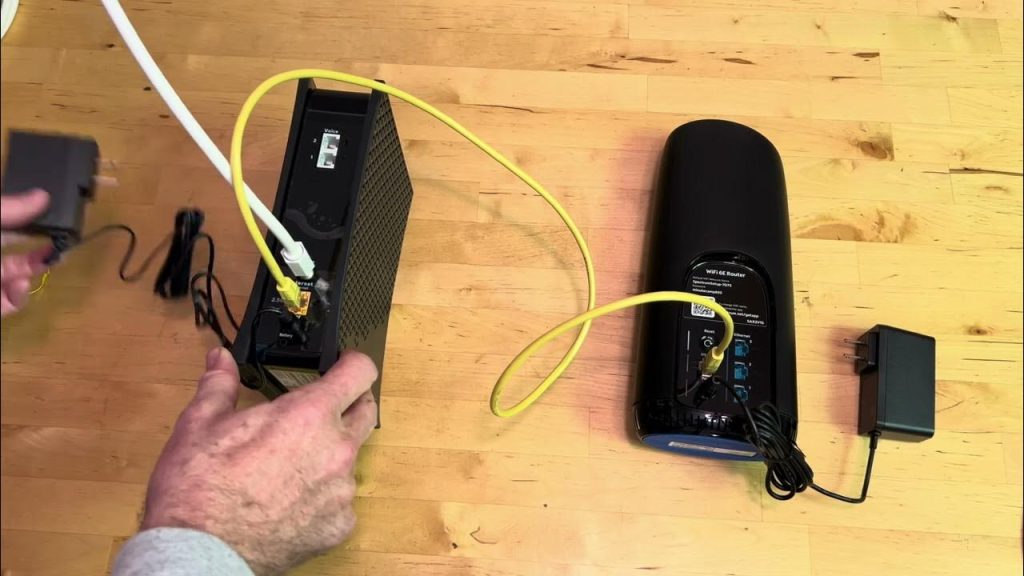
Connect one end of the Ethernet cable to your modem. Plug the other end into the router’s Internet or WAN port. Make sure the cable clicks into place.
Next, connect the power adapter to the router. Plug it into a wall outlet. Use the original power adapter that came with the router.
Check that all cables are secure. Loose connections can cause internet problems. When everything is connected, you are ready to power on the router.
Internet Port
Locate the Internet Port on the back of your Spectrum router. It is usually labeled Internet or WAN. In many routers, this port is a different color from the others.
Connect the Ethernet cable from your modem to the Internet Port. Push the cable in until it clicks. This creates the main connection between the modem and the router.
Check that the cable is firmly attached at both ends. A loose connection can prevent the router from accessing the internet.
Once the Internet Port is connected, you can continue with the next setup step.
Step 4: Power Device
Plug the router’s power adapter into the power port. Then connect it to a working wall outlet. Press the power button if your router has one.
Wait for the router to turn on completely. The power light should become steady after a short time. This may take a few minutes.
Do not unplug the router while it is starting. Let it finish the boot process without interruption. Once the lights are stable, you can continue to the next step.
Step 5: Wait Lights
Watch the lights on the front of your Spectrum router. They show the router’s status during startup. The lights may blink for a few minutes.
Wait until the power and internet lights become steady. A stable light usually means the router is ready to use. Do not continue while the lights are still flashing.
If the lights do not stop blinking, check the cable connections again.
You can also restart the modem and router if needed. Once the lights are stable, move on to the next step.
Step 6: Join Network
Open the WiFi settings on your phone, tablet, or computer. Look for your Spectrum WiFi network in the list. Tap or click its name to connect.
Enter the default WiFi password if prompted. You can find it on the router label or in the setup guide. Type it carefully to avoid errors.
Wait a few seconds for your device to connect. A WiFi icon will appear when the connection is successful. You are now ready for the next setup step.
Step 7: Open Portal
Open a web browser on your connected device. Type the router’s setup address into the address bar. Press Enter to open the setup portal.
If your router uses the Spectrum app, open the app instead. Follow the on-screen instructions to continue. The setup process is simple and easy to follow.
Wait for the setup page to load completely. If it does not open, check your WiFi connection and try again. Once the portal is open, you can continue with the next step.
Step 8: Create Password
Create a strong password for your WiFi network. Use a mix of letters, numbers, and special characters. Avoid using simple words or personal information.
Choose a password that is easy for you to remember. At the same time, make it hard for others to guess. A strong password helps protect your network.
Save the new password before leaving the setup page. Write it down in a safe place if needed. You will use this password to connect your devices to WiFi.
Step 9: Update Settings
Review the router settings before finishing the setup. Make sure the WiFi name and password are correct. Change any default settings if needed.
Check if a firmware update is available. Install the update if the router recommends it. This can improve performance and security.
Save all your changes before leaving the setup page. The router may restart after the update. Wait until it comes back online before moving to the final step.
Step 10: Test Connection
Open a website or play a short video on your device. Check if the internet is working properly. Pages should load quickly without errors.
Try connecting more than one device to the WiFi network. Make sure each device can access the internet. This confirms that the router is working correctly.
If the connection is slow or not working, restart the modem and router. Check all cable connections again.
Once everything works well, your Spectrum router setup is complete.
Troubleshooting
If your Spectrum router is not working, do not worry. Start by checking all cable connections. Make sure every cable is plugged in securely.
Restart both the modem and the router. Turn them off for about 30 seconds, then turn them back on. This simple step often fixes common connection problems.
If the issue continues, check the router settings or contact Spectrum support. You can also reset the router and set it up again if needed. Most problems can be solved with a few simple checks.
Security Tips
Protect your WiFi network with a strong password. Use a mix of letters, numbers, and symbols. Avoid easy passwords like your name or birth date.
Change the default router login details after setup. This helps keep other people from accessing your router settings. Only share your WiFi password with people you trust.
Keep your router software up to date. Install firmware updates when they are available.
Regular updates improve security and help protect your network from new threats.
Common Mistakes
Many people connect the Ethernet cable to the wrong port. Always use the Internet or WAN port on the router. A wrong connection will stop the internet from working.
Some users place the router in a corner or behind large furniture. This can weaken the WiFi signal. Keep the router in an open and central location for better coverage.
Another common mistake is keeping the default WiFi password. This can make your network less secure. Create a strong password and save your settings before finishing the setup.
Comparison Table
The table below shows the main setup steps and why each one is important. It also explains what can happen if you skip a step. This makes the process easier to understand.
Follow each step in the correct order for the best results. A complete setup gives you a stable and secure internet connection. It also helps prevent common setup problems.
| Setup Step | Purpose | What to Do | If Skipped |
| Unbox Router | Prepare the device | Remove the router and accessories from the box | Missing or damaged items may go unnoticed |
| Check Contents | Confirm all items are included | Verify the router, cables, and power adapter | Setup may stop if an item is missing |
| Connect Cables | Link the modem and router | Connect the Ethernet cable to the Internet/WAN port | No internet connection |
| Power Device | Turn on the router | Plug in the power adapter and switch on the router | Router will not start |
| Wait Lights | Allow the router to boot | Wait until the indicator lights become steady | Setup may fail if started too early |
| Join Network | Connect your device | Select the router’s WiFi and enter the password | You cannot access the setup page |
| Open Portal | Access router settings | Open the setup page or Spectrum app | Router settings cannot be configured |
| Create Password | Secure the WiFi network | Set a strong and unique password | Your network may be less secure |
| Update Settings | Improve performance | Save settings and install firmware updates | You may miss security and performance improvements |
| Test Connection | Confirm everything works | Browse the internet on one or more devices | Problems may go unnoticed after setup |
Final Thoughts
Setting up a new Spectrum router is easier than it may seem. You only need to follow each step in the right order. A careful setup helps you avoid common problems.
Once your router is ready, you can enjoy a fast and stable internet connection. Connect all your devices and check that everything works well. If you face any issues, review the setup steps and try again.
Learning how to set up new Spectrum router can save you time and reduce frustration.
Keep your router updated and protect it with a strong password. These simple habits will help your WiFi network stay secure and reliable.
FAQs
1. How long does it take to set up a new Spectrum router?
Most people can complete the setup in 10 to 20 minutes if all the cables are connected correctly.
2. Can I set up my Spectrum router without the Spectrum app?
Yes. You can use a web browser and open the router’s setup page to complete the installation.
3. What should I do if my Spectrum router is not connecting to the internet?
Check the cable connections, restart the modem and router, and make sure the Internet/WAN port is connected properly.
4. How do I find my Spectrum WiFi name and password?
The default WiFi name (SSID) and password are usually printed on the label on the bottom or back of the router.
5. Should I change the default WiFi password after setup?
Yes. Changing the default password makes your WiFi network more secure and helps protect it from unauthorized access.