
A green screen on a laptop is a display problem where the screen turns green or shows a green tint. It can happen due to hardware issues, software errors, or outdated graphics drivers. Sometimes, it appears suddenly while using the laptop or when the system starts.
This issue can be frustrating because it makes the screen hard to see and use properly. Many users worry that it means their laptop is seriously damaged. But in most cases, it is a fixable problem with simple troubleshooting steps at home.
In this guide, you will learn easy methods to solve the green screen issue without expert help. These solutions include checking display settings, updating drivers, and fixing system errors. With the right steps, you can bring your laptop screen back to normal quickly.
Symptoms of Green Screen Problem
A green screen problem on a laptop shows clear visual changes on the display. The screen may turn fully green or show a light green tint over normal colors. Sometimes, lines or flickering also appear on the screen.
In some cases, the screen works, but the colors look strange or unnatural. Images and videos may not display correctly. The issue can come and go while using the laptop.
Another common symptom is screen freezing with a green overlay. The laptop may still run, but the display becomes hard to see. These signs usually point to a graphics or display-related problem.
Causes of Laptop Green Screen Issue
A green screen issue on a laptop can happen for many reasons. One common cause is a problem with the graphics driver. When the driver is outdated or corrupted, the display may show green colors or distortions. It can also happen due to system errors or sudden software crashes.
Hardware issues can also cause this problem. A loose display cable, faulty GPU, or damaged screen can lead to a green tint. Overheating is another reason, especially when the laptop is used for long hours without proper cooling.
Common Causes Table
| Cause | Description | Level of Issue | Possible Fix |
| Outdated Graphics Driver | Old or unsupported driver affects display output | Medium | Update or reinstall driver |
| Corrupted System Files | Windows files get damaged or missing | Medium | Run system repair scan |
| Loose Display Cable | Internal cable not properly connected | High | Reconnect or repair hardware |
| Faulty GPU | Graphics card is damaged or failing | High | Hardware repair or replacement |
| Overheating | Excess heat affects display performance | Medium | Clean cooling system, use cooling pad |
| Software Conflict | Apps interfering with display settings | Low to Medium | Uninstall recent apps or updates |
| Screen Damage | Physical damage to display panel | High | Replace laptop screen |
Check Display Connections
First, make sure all display connections are properly attached. A loose or damaged cable inside the laptop can cause a green screen issue. This often happens if the laptop has been dropped or opened before.
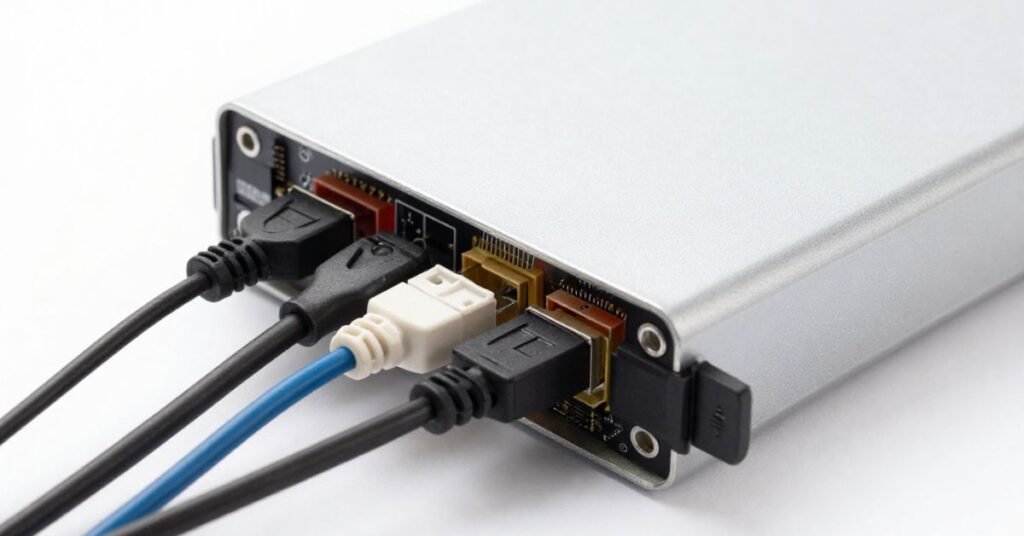
Turn off your laptop and unplug all power sources before checking connections. If you are comfortable, you can carefully inspect the internal display cable. Reconnecting it properly may fix the screen problem quickly.
If the issue is not fixed, the cable itself may be damaged. In that case, it may need replacement. It is better to get help from a technician if you are unsure about opening the laptop.
Restart Your Laptop
Restarting your laptop is one of the simplest ways to fix a green screen issue. Many times, the problem happens due to a temporary system glitch. A quick restart can refresh the system and fix minor display errors.
Save your work before restarting the laptop. Then turn it off completely and wait a few seconds. After that, turn it back on and check if the screen is normal.
If the green screen goes away, it means the issue was temporary. If it still appears, then the problem may be related to drivers or hardware. In that case, you will need to try other solutions.
Update Graphics Drivers
Outdated graphics drivers are a common reason for a green screen issue. The driver controls how your laptop displays images and colors. If it is old or corrupted, the screen may show a green tint or distortion.
To fix this, update your graphics driver from Device Manager or the official website of your laptop brand. Make sure you download the correct version for your system. After updating, restart your laptop to apply the changes.
If the problem was caused by the driver, the green screen should be gone. Keeping drivers updated also helps your laptop run smoothly. It reduces the chances of display errors in the future.
Adjust Display Settings
Sometimes, wrong display settings can cause a green screen issue. Incorrect color calibration or resolution settings may affect how your screen looks. This can make the display appear green or distorted.
Go to your display settings and check the resolution. Set it to the recommended level for your laptop. You can also reset the color settings to default if they were changed.
After making changes, apply the settings and restart your laptop. This helps the system refresh the display. If settings were the problem, the screen should return to normal.
Scan for Malware
Malware can sometimes cause display problems on a laptop. Harmful software may interfere with system files and graphics performance. This can lead to a green screen or other visual issues.
Run a full system scan using a trusted antivirus program. Make sure your antivirus is updated before starting the scan. Remove any detected threats from your laptop.
After cleaning the system, restart your laptop. This helps remove any remaining effects of malware. If malware was the cause, your screen should start working normally again.
Boot in Safe Mode
Safe Mode starts your laptop with only basic files and drivers. It helps you find if a program or driver is causing the green screen issue. In this mode, unnecessary software does not run.
To enter Safe Mode, restart your laptop and use the advanced startup options. Choose Safe Mode from the list. Once it opens, check if the green screen still appears.
If the screen looks normal in Safe Mode, the problem is likely software-related. You can then remove recent apps or update drivers. This helps you fix the issue step by step.
How to fix a laptop green screen without data loss
You can fix a green screen issue without losing your important data. Start by trying simple solutions like restarting your laptop and updating graphics drivers. These steps do not affect your files.
You can also use Safe Mode to remove faulty apps or drivers. This helps fix the problem while keeping your personal files safe. Always avoid resetting your laptop before trying other methods.
If needed, back up your data before doing advanced fixes. Use an external drive or cloud storage for safety. This ensures your files remain secure during troubleshooting.
Check Hardware Issues
Hardware problems can also cause a green screen on your laptop. The issue may come from a faulty GPU, a damaged display panel, or loose internal parts. These problems usually affect the screen directly.
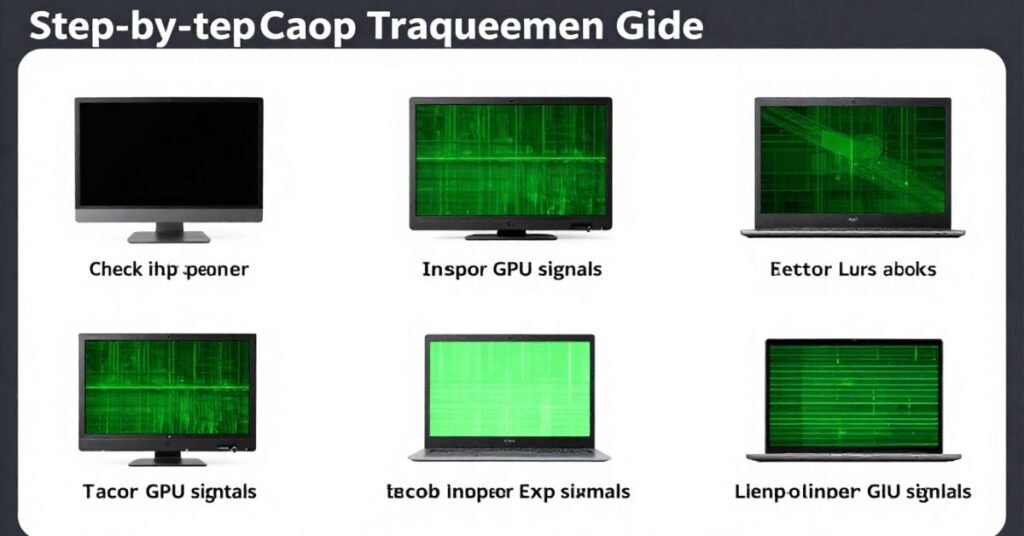
Check if your laptop shows the same issue when connected to an external monitor. If the external screen works fine, the problem may be in your laptop display. If both screens show the issue, the GPU may be damaged.
In most cases, hardware issues need technical repair. You should avoid opening the laptop if you are not experienced. A professional technician can properly diagnose and fix the problem.
Get Professional Help
If the green screen problem still continues, it is time to get professional help. Some issues are too complex to fix at home. A trained technician can properly check your laptop.
They can inspect both hardware and software in detail. This helps find the exact cause of the problem. It also reduces the risk of further damage.
Professional repair is the safest option for serious issues. It ensures your laptop works correctly again. Always choose a trusted repair service for better results.
Cnclusion
In conclusion, a laptop green screen problem can look serious, but it is often fixable. Most of the time, it happens due to driver issues, settings, or small software errors. Simple steps like restarting, updating drivers, and checking settings can solve it.
If the problem continues, it may be related to hardware. In that case, professional help is the best option. With the right approach, you can fix the issue and keep your laptop working smoothly again.
FAQs
1. Why does my laptop show a green screen?
It usually happens due to graphics driver issues, software errors, or hardware problems like a faulty GPU.
2. Can I fix the green screen at home?
Yes, in many cases you can fix it by restarting, updating drivers, or adjusting display settings.
3. Is green screen a serious laptop problem?
Not always. It can be minor, but sometimes it may indicate hardware damage.
4. Will resetting my laptop fix the green screen?
It may help if the issue is software-related, but try other fixes first to avoid data loss.
5. When should I go to a technician?
If the problem continues after all basic fixes, it is best to get professional help.