
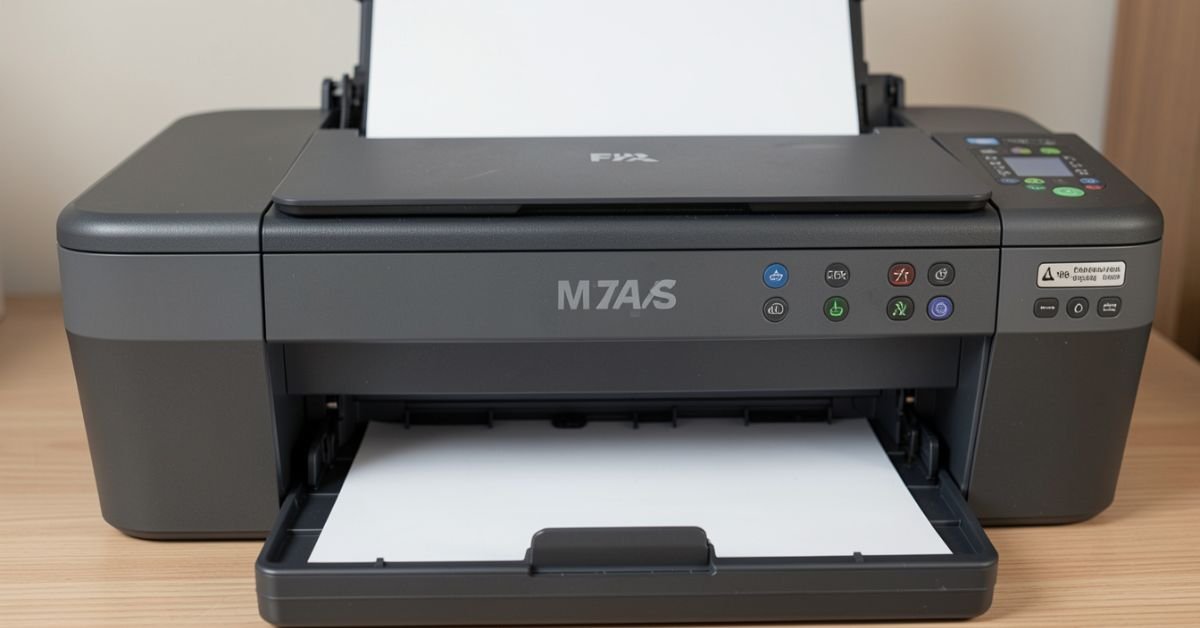
Printer streaks are unwanted lines or marks that appear on printed pages. They can make text and images look unclear or messy. This problem usually happens due to low ink, dirty printer parts, or clogged nozzles.
If you are tired of faded or streaky prints, you are not alone. Many people face this issue at home and in the office. The good news is that you can fix printer streaks easily with a few simple steps without needing expert help.
In this guide, we will walk you through easy and practical solutions. You will learn what causes printer streaks and how to fix them step by step. These tips will help you get clean, sharp, and professional-looking prints again.
Common Causes of Printer Streaks
Printer streaks usually happen when the printer is not working properly. One common cause is low or empty ink cartridges. When there is not enough ink, the printer cannot produce smooth and clear prints, which leads to lines or gaps on the page.
Another cause is a clogged printhead. Ink can dry up inside the nozzles if the printer is not used for a long time. This blocks the ink flow and creates streaks or faded areas in the print.
Dust and dirt inside the printer can also cause this issue. Paper dust or debris can stick to the rollers and printhead. This affects the printing process and results in uneven or streaky output.
How Ink Levels Affect Print Quality
Ink levels play a big role in print quality. When the ink is low, the printer cannot distribute color evenly on the page. This often leads to faded text, missing lines, or visible streaks.
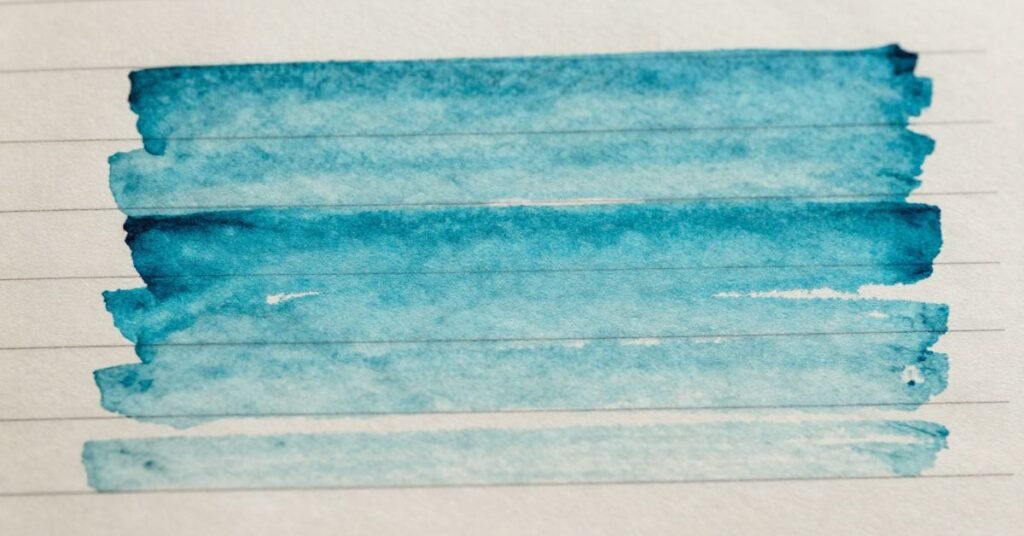
If one color cartridge is empty or nearly empty, the print may look uneven. Even black-and-white documents can appear broken or light. The printer needs a balanced ink supply to produce clean results.
Checking ink levels regularly can help avoid these problems. Replacing or refilling cartridges on time keeps the print quality sharp and clear. It also helps prevent unnecessary damage to the printer head.
Cleaning the Printer Head Properly
Cleaning the printer head is very important for clear printing. Over time, ink can dry and block the nozzles. This blockage often causes streaks and faded prints.
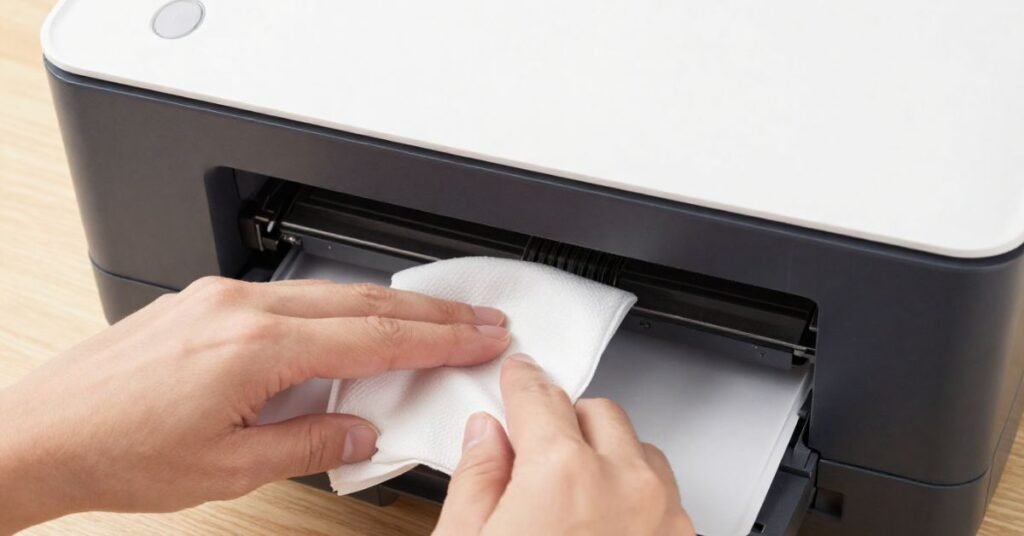
Most printers have a built-in cleaning option in the settings. You can run the cleaning cycle from your computer or printer screen. This process helps clear dried ink and improve ink flow.
If the problem continues, a manual cleaning may be needed. Gently clean the printhead using a soft cloth or approved cleaning solution. Always follow the printer manual to avoid any damage.
Fixing Clogged Nozzles Step by Step
Clogged nozzles are a common reason for printer streaks. They stop ink from flowing properly onto the paper. This results in missing lines, gaps, or faded prints.
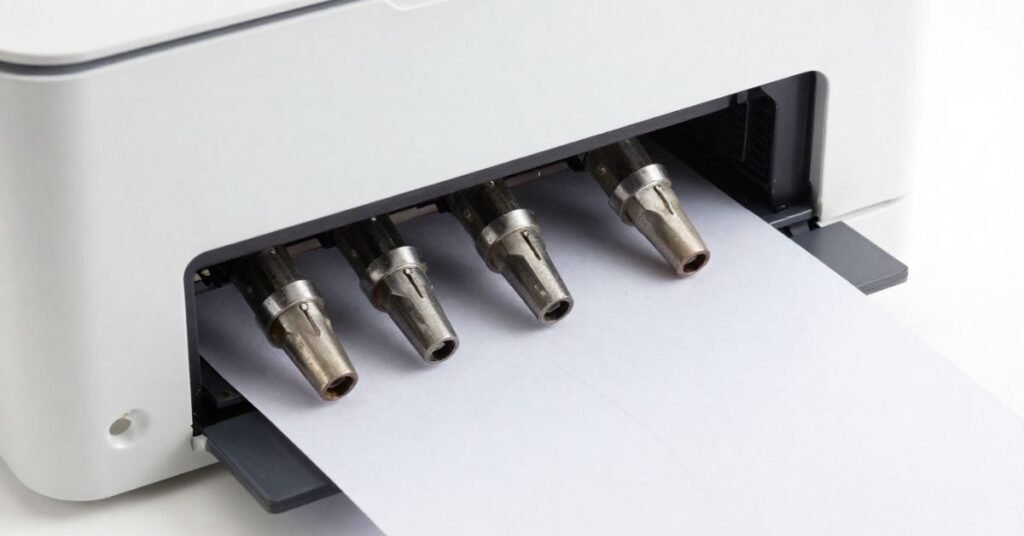
To fix this, start by using the printer’s cleaning utility. Most printers have an option called “Nozzle Check” or “Head Cleaning.” Run this function to clear light blockages automatically.
If the issue is not solved, repeat the cleaning process a few times. You can also use deep cleaning mode if your printer has it. This helps remove stubborn clogs and restores normal print quality.
Paper Quality and Its Impact on Streaks
Paper quality can greatly affect print results. Low-quality or rough paper can absorb ink unevenly. This often leads to streaks, smudges, or dull prints.
Thin or damaged paper can also cause problems. It may not pass smoothly through the printer. This can result in misalignment and uneven ink distribution.
Using good-quality paper helps improve print clarity. Smooth and recommended paper types give better results. It also reduces the chances of streaks and printing errors.
How to Fix Printer Streaks Quickly and Effectively
Fixing printer streaks starts with checking the basic issues. First, make sure the ink levels are high enough. Low ink is one of the most common reasons for streaky prints.
Next, clean the printhead using the printer’s built-in cleaning option. This helps remove dried ink and clears blocked nozzles. It often improves print quality right away.
If the problem continues, check paper quality and printer settings. Use good-quality paper and correct print mode. These simple steps can quickly fix streaks and give clean, sharp prints.
Comparing Inkjet vs Laser Printing Issues
Inkjet and laser printers both have different causes of streaks. Inkjet printers often face issues like clogged nozzles and dried ink. Laser printers usually have problems with toner, drum units, or dust inside the machine.
Inkjet printers need regular use to keep ink flowing smoothly. Laser printers are more stable but can still show streaks if the toner is low or the drum is damaged. Understanding these differences helps in fixing the problem faster.
Comparison Table
| Feature | Inkjet Printer Issues | Laser Printer Issues |
| Main Cause of Streaks | Clogged nozzles, dried ink | Low toner, drum damage |
| Maintenance Needs | Frequent cleaning required | Less frequent maintenance |
| Print Quality Issues | Faded or broken lines | Black lines or toner spots |
| Usage Requirement | Must be used regularly | Can sit unused longer |
| Cost of Fixing | Low to moderate | Moderate to high |
| Cleaning Method | Head cleaning cycle or manual cleaning | Drum cleaning or toner replacement |
| Common Problem Frequency | High if not used often | Moderate, usually hardware-related |
Printer Settings You Should Check
Printer settings can affect print quality more than you think. If the settings are wrong, you may see streaks, faded text, or uneven colors. Always start by checking the basic print setup.
Make sure the print quality is set to “High” or “Best.” Low-quality mode saves ink but can cause streaks. Also, check if the correct paper type is selected in the settings.
You should also review color and alignment settings. Incorrect color balance or misalignment can create poor results. Resetting settings to the default can often fix hidden printing issues quickly.
Preventing Streaks for Long-Term Results
Preventing printer streaks is better than fixing them again and again. Regular maintenance keeps your printer in good condition. It also helps you avoid common printing problems.
Use your printer often to stop ink from drying inside the nozzles. Clean the printhead once in a while, even if there is no issue. This keeps the ink flow smooth and steady.
Always use good-quality ink and paper for the best results. Keep the printer in a clean, dust-free place. These simple habits can help you get clear and streak-free prints for a long time.
Conclusion
Printer streaks are a common problem, but they are easy to fix. Most issues come from low ink, clogged nozzles, or poor settings. With a few simple checks, you can quickly improve your print quality.
Regular care and cleaning can help you avoid this issue in the future. Use good paper, check ink levels, and clean your printer often. These small steps will keep your printer working smoothly and give you clear, clean prints every time.
FAQs
1. What causes printer streaks?
Printer streaks are usually caused by low ink, clogged nozzles, or dirty printheads.
2. Can cleaning the printhead fix streaks?
Yes, cleaning the printhead often removes dried ink and improves print quality.
3. Does low-quality paper cause streaks?
Yes, poor paper can absorb ink unevenly and create streaks or smudges.
4. How often should I clean my printer?
It is good to clean your printer every few weeks or when print quality drops.
5. Can printer settings affect streaks?
Yes, incorrect settings like low print quality mode can cause streaky prints.