
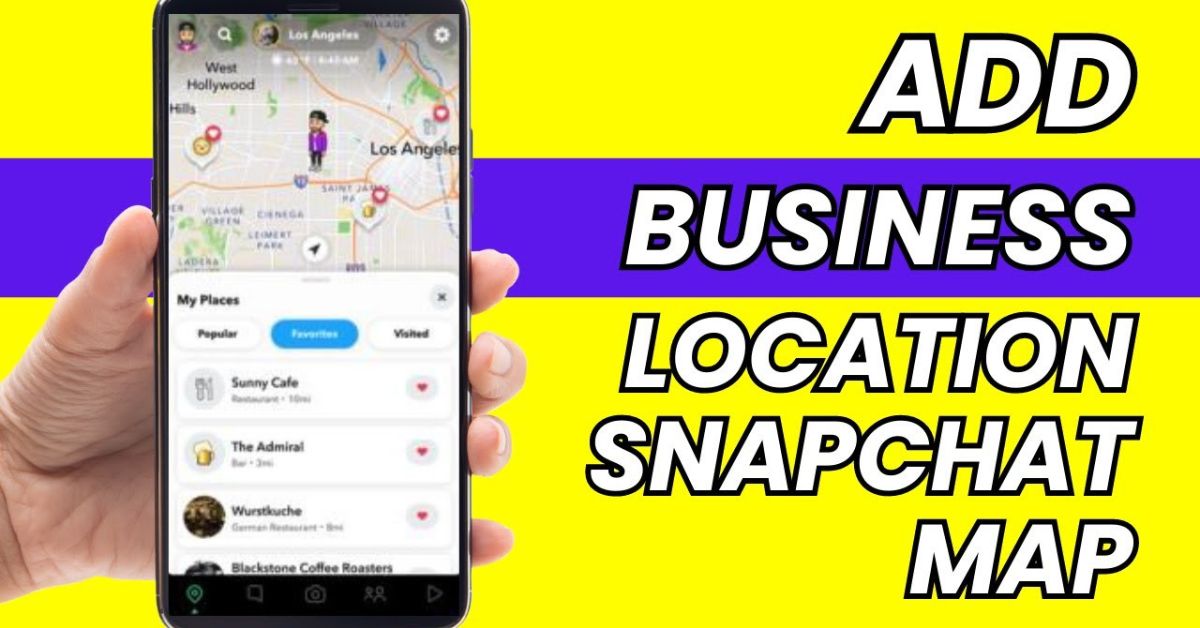
If you own a shop, restaurant, salon, office, or another local business, Snapchat can help people discover your place. One useful feature is Snap Map. It lets users explore real places and view information about businesses around them.
Snapchat calls these real-world listings Places. A Place can show details such as the name, address, hours, phone number, website, and other useful information.
Many business owners search for how to add business location on Snapchat because they want customers to find their physical location more easily. A business location can make your place easier to discover when Snapchat users search around your area. It can also help people connect your online content with your real business location.
The process is simple, but Snapchat does not always show the same options on every account or app version. The most direct method is to open Snap Map and use the Suggest a Place option. Snapchat officially provides this feature for suggesting a new place on the map.
What Is a Snap Map?
Snap Map is Snapchat’s map feature. It helps users explore places and content around the world. People can use the map to discover local areas, see public Snaps, and find Places that represent real-world spots.
For businesses, Snap Map can act as another way for customers to discover a physical location. Snapchat’s official support explains that Places can include restaurants, shops, landmarks, and other real-world spots. A Place page may contain useful business information for users.
A business listing can make it easier for someone to recognize your company when they search nearby. For example, a customer looking for a restaurant may see its Place listing and find its address, hours, phone number, or website.
This makes Snap Map useful for local discovery. However, adding a place does not guarantee that Snapchat will display every detail exactly as you expect. Snapchat controls the map data and may review suggested information before showing it.
Why Add a Business?
Learning how to add business location on Snapchat can help you improve your local presence. Customers often use social apps while they travel, shop, eat, and explore. A visible business location can connect your Snapchat activity with your physical location.
A Place can give customers important details before they visit. Snapchat says Place listings can include directions, hours, phone numbers, websites, reviews, and other information. This can make the listing more useful than a simple name on a map.
Your location can also help customers understand where your content comes from. If you share Snaps from your business, the location can give viewers extra context about your place.
You should still keep your business information accurate. A wrong address or old phone number can confuse customers. Before you submit a new place or suggest an edit, check the information carefully.
Business Location Basics
Before learning how to add business location on Snapchat, it helps to understand what you are actually adding. You are not simply turning on your personal GPS location. A business place is different from sharing your own location with friends.
Your personal location controls where your Bitmoji may appear on Snap Map. Snapchat provides separate settings for sharing your location with friends. Those settings do not automatically create a public business listing.
A business Place represents a real-world location. It can contain information that helps people learn about the business. This makes the Place feature more useful for local discovery than simply dropping a temporary map pin.
You should therefore focus on your actual business details. Use the correct business name, physical location, category, contact information, and other details that Snapchat asks for during the suggestion process.
Check Your Business First
Before you try to add a business location on Snapchat, search Snap Map for your business. Snapchat may already have a place for your company. If it exists, creating another listing may not be necessary.
Open Snapchat and go to Snap Map. Use the map search feature and look for your business name. You can also explore the area around your physical location to see whether a Place appears there.
Snapchat says users can tap the Places area on the Map to search for Places and view personalized Place recommendations. This makes searching the existing map a useful first step.
If you find your business, check the information carefully. Look at the name, address, category, phone number, website, and hours. If something is wrong, you may need to suggest an edit instead of creating a new place.
Prepare Your Details
Good preparation can make the process easier. Before you start, collect the information that describes your business. Make sure the information matches your real-world location.
Your business name should be clear and consistent. Avoid adding unnecessary words that do not appear in your normal business name. A correct name can make your place easier for customers to recognize.
You should also have the correct physical address. Check the street name, building number, area, city, and other location details. If your business sits inside a shopping center or another larger property, make sure the location is easy to identify.
It also helps to have your business category, phone number, website, and opening hours ready. Snapchat’s Place editing system includes fields such as the Place name, map location, category, phone, website, address, hours, and menu.
Open Snap Map
The first practical part of how to add business location on Snapchat is opening Snap Map. Start by opening the Snapchat app on your phone and signing in to your account.
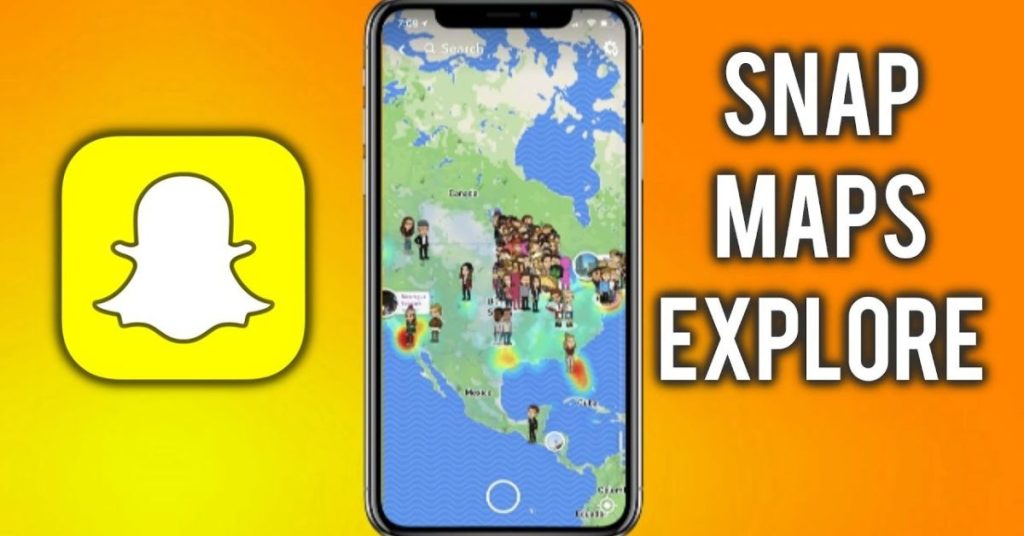
From the main Snapchat screen, open the Map. The exact screen layout can change as Snapchat updates the app. If you do not see the same buttons shown in an older tutorial, look for the Map option within the current Snapchat interface.
Once Snap Map opens, take a moment to check your business area. Search for your business name if it already appears. If you cannot find it, you can move forward with the place suggestion process.
Snapchat’s current support instructions say users can open Snap Map, tap the gear icon, and choose Suggest a Place to suggest a new location.
Find Suggest a Place
The Suggest a Place option is the key feature when your business does not already appear on Snap Map. Snapchat officially provides this option for suggesting a new Place.
After opening Snap Map, look for the settings or gear icon. Tap it to open the relevant Snap Map settings. Then look for Suggest a Place. Snapchat’s official instructions specifically list this route for suggesting a new Place.
The wording and location of buttons may change as Snapchat releases updates. Therefore, do not worry if your screen looks slightly different from screenshots you see online. Look for the same general feature rather than copying an old interface exactly.
If you cannot find the option, update Snapchat first. You can also close and reopen the app. If the feature remains unavailable, check whether your account or region has access to the current Place tools.
Add Business Details
Once you open Suggest a Place, Snapchat will ask you to provide information about the new location. Enter the details carefully. The goal is to give Snapchat enough information to understand what place you are suggesting.
Start with the business name. Use the real name that customers know. Then provide the location information requested by the form. Make sure the location points to the actual business rather than a nearby road or unrelated building.
The category also matters because it helps describe the type of business. A restaurant, clothing shop, salon, hotel, and office serve different purposes. Choose the category that best represents your business when the option is available.
Review every field before submitting the suggestion. Small errors can make the location harder to identify. Accurate information also gives customers a better experience if Snapchat later displays the Place.
Set the Correct Map Location
The map position is one of the most important parts of how to add business locations on Snapchat. A correct business name does not help much if the map location points to the wrong building.
When Snapchat asks for the location, make sure the map marker represents the actual place. Check nearby roads, buildings, landmarks, and other map details. This can help you confirm that the marker sits in the right area.
If your business has a specific entrance, consider the practical location customers use. A large property may have several entrances, so accuracy can matter when customers use directions.
Snapchat’s Place editing feature includes Map location as one of the fields users can suggest changes to. This shows that map position is an important part of a Place listing.
Choose the Right Category
A category helps explain what your business does. When Snapchat gives you a category option, choose the closest match to your actual business.
For example, a restaurant should use a restaurant-related category. A clothing store should use a retail category that fits its business. A salon should use a category related to beauty or personal care if that option appears.
Do not select a category only because it sounds popular. A correct category gives users a clearer idea of what they will find at the location.
If the business changes its main service later, you can check whether the Place allows an edit. Snapchat says users can suggest changes to the Place category along with other business information.
Add Contact Information
Accurate contact information can make your business Place more useful. If Snapchat gives you fields for a phone number or website, use the official business details.
A customer may want to call before visiting. Another customer may want to check your website for services, products, booking information, or opening hours. Correct contact details can therefore improve the value of the listing.
Do not enter a personal phone number unless it is the number you intentionally use for your business. Keep your public business information separate from private personal details.
Snapchat’s official Place editing guidance confirms that phone and website information can be suggested as part of a Place edit. This makes it worth checking these details carefully.
Add Business Hours
Business hours tell customers when they can expect your location to be open. If the Snapchat Place form includes hours, enter your normal operating schedule carefully.
Check your hours before submitting. If you close on certain days or have different weekend hours, make sure the information reflects your real schedule.
Holiday hours can change during the year. If Snapchat allows you to update your Place later, check the listing when your business schedule changes significantly.
Snapchat includes Hours among the fields that users can suggest changes to on an existing Place. Accurate hours can help prevent customers from arriving when your business is closed.
Add a Website
A website can give customers more information than a short Snapchat listing. If Snapchat provides a website field, use your official business website.
Make sure the website works before you submit it. Check it from a phone as well as a computer. A mobile-friendly site gives customers a better experience because most Snapchat users access the platform through a mobile device.
Your website should also match the business name and location. Consistent information can make your online presence look more trustworthy.
If you change your website later, check whether your Snapchat Place still shows the old address. Snapchat allows users to suggest website changes for existing Places.
Submit Your Place
After entering the details, review everything before sending the suggestion. This is an important part of how to add business location on Snapchat because you want to avoid simple errors.
Check the business name, address, map position, category, phone number, website, and hours. Make sure the information describes the actual business and not a nearby location.
When you feel confident that everything is correct, submit the Place suggestion through Snapchat. Snapchat’s official instructions confirm that the Suggest a Place feature lets users tell Snapchat about a new Place.
After submission, do not assume that the listing will appear instantly. Snapchat may need to process the suggestion. Give the platform time to update the map before trying to submit the same place repeatedly.
Wait for Map Updates
After you learn how to add a business location on Snapchat, you may expect the Place to appear immediately. However, map information can take time to update.
A submitted suggestion may need review or processing before it becomes visible as a normal Place. The exact timing can vary, so avoid relying on a fixed waiting period.
If you do not see your business right away, wait and search again later. Check the exact business name and nearby area rather than searching only one way.
Repeated submissions can create confusion if the original request is still being processed. It is better to check the existing listing first and use Snapchat’s edit feature if a Place has already appeared.
If Your Business Already Exists
Sometimes you do not need to add a new Place because Snapchat already has your business listed. In that case, focus on correcting or improving the existing information.
Open the Place on Snap Map and check the details. If the address, category, phone number, website, hours, or other information is wrong, Snapchat provides a way to suggest an edit.
Tap the Place and use the three-dot menu next to the Place name. Snapchat’s official support says you can then choose to Suggest an edit and submit changes.
This method is better than trying to create another listing for the same location. A single accurate Place can provide a cleaner experience for customers who search for your business.
Edit a Wrong Location
If your business appears but the map marker sits in the wrong area, you can suggest a map correction. This is useful when the business name is correct but the physical position does not match.
Open the existing Place and select the option for suggesting an edit. Snapchat lists map locations among the information that can be changed through this process.
Check the map carefully before suggesting the correction. Make sure the new position represents the real business location. Avoid moving the marker to a general neighborhood simply because it is easier to recognize.
A precise map position can help customers who rely on map directions. It can also make the place more useful when people explore nearby businesses.
Fix Wrong Business Details
Business information can become outdated. A company may change its phone number, website, hours, category, or address. If your Snapchat Place contains old details, suggest an edit.
Snapchat officially lists several editable Place fields. These include the name, map location, category, phone, website, address, hours, and menu.
When you request a correction, provide information that accurately represents the business. Avoid adding promotional claims that do not belong in basic location information.
After submitting a change, check the Place again later. If the update does not appear immediately, give Snapchat some time to process the request.
Add a Restaurant Location
Restaurants can benefit greatly from a visible Place because customers often search for food while they are already exploring an area. Snapchat says Places can include information such as reviews, directions, hours, phone numbers, websites, and restaurant reservations.
When adding a restaurant, make the business name clear. Use the actual restaurant location and select the most suitable category available.
Check your opening hours carefully. Restaurants often have different lunch, dinner, weekend, or holiday schedules. Incorrect hours can quickly frustrate customers.
If your restaurant already has a Place, suggest edits instead of creating a duplicate. Check the address, phone number, website, hours, and menu information whenever these details change.
Add a Shop Location
Retail shops can also use Snap Map to help customers find their physical location. A shop that appears as a Place can give users useful information when they explore the surrounding area.
Start by checking whether your shop already appears. Search for the business name and inspect the nearby map area. If the shop does not appear, use Suggest a Place when the option is available.
Use the correct shop category and physical address. If your shop operates inside a mall or shopping center, make the location as accurate as possible.
Keep the business information updated after the Place becomes available. If the shop moves or changes its contact details, check whether you can suggest the required edits.
Add a Salon Location
Salons, barbershops, spas, and beauty businesses can also benefit from local discovery. Customers often search for these services based on distance and convenience.
When you add your salon location, use the real business name and correct map position. Select a category that clearly matches the services you provide.
Your opening hours can be especially important for appointment-based businesses. Make sure customers can see accurate information if Snapchat provides an hours field.
If the salon already appears on Snap Map, use the edit feature when details need correction. Snapchat allows Place edits for several business fields, including category, address, phone, website, and hours.
Add an Office Location
An office can be added as a Place when it represents a real-world business location and Snapchat provides the appropriate category. The main goal should be accuracy.
Use the official business name and the actual office address. Make sure the map location points to the correct building or property.
If your company operates from a shared office building, provide the information Snapchat requests rather than creating an inaccurate location. Customers should be able to understand where they need to go.
If the office moves, check the existing Place instead of submitting a second location immediately. Suggest an edit when Snapchat provides that option.
Snapchat Location Versus Place
One common mistake is confusing personal location sharing with a business place. These features work differently.
Your personal Snapchat location relates to your account and the people you choose to share your location with. Snapchat allows users to share their location with all friends, selected friends, or selected exceptions.
A Place represents a real-world spot on Snap Map. It can contain business information that helps users discover the location.
Therefore, turning on your personal location does not mean you have added your business to Snapchat. If you want a business listing, you should look for the Place suggestion or edit features.
Snapchat Location Versus Pin
Another common misunderstanding involves dropping a pin. Snapchat allows users to press and hold a location on the Map to create a pin and share that location with friends.
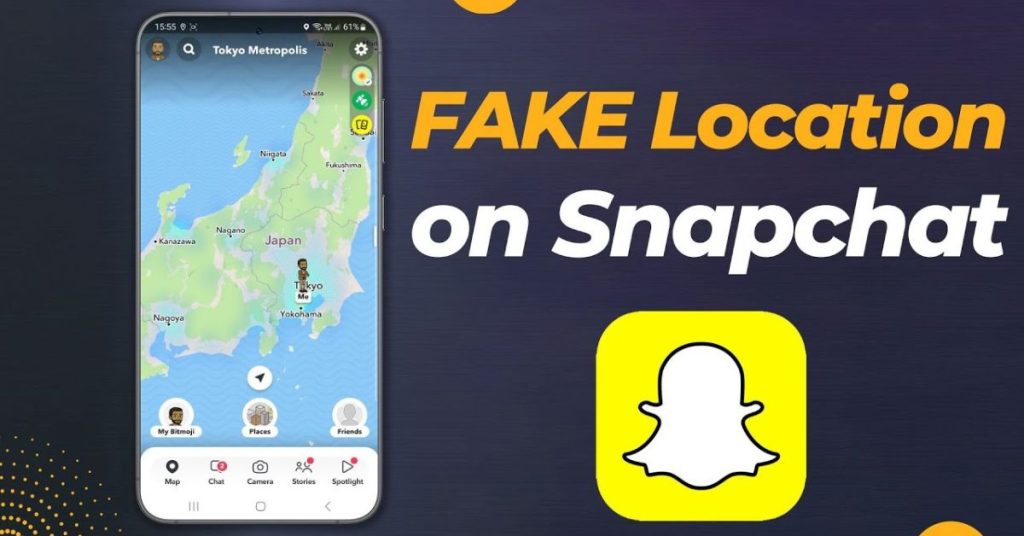
A temporary or shared pin is not the same as creating a permanent business Place. A pin can help you tell someone where you are, but it does not automatically create a public business listing.
This difference matters when researching how to add business location on Snapchat. Business owners usually want customers to discover a recognizable Place, not just receive a location pin.
If your goal is to create or correct a business listing, use the Place features instead of relying on a dropped pin.
Location Sticker Versus Business Place
Snapchat also lets users add location-related elements to Snaps. This can help people understand where a photo or video was taken.
However, adding a location to a Snap does not necessarily create a business Place. These features serve different purposes.
A location sticker or Place tag can connect content with a location. A Place listing provides a map-based representation of a real-world location and may include business information.
Snapchat also explains that a Place Visit can occur when a user tags a Place on a Snap through a Place sticker, caption, or Send To page. This shows how Place information and content can work together.
Common Problem
One common problem is that Suggest a Place does not appear. This can happen because Snapchat changes its interface, features vary by account or region, or the app needs an update.
Start by updating Snapchat through your phone’s app store. Then reopen the app and check Snap Map again. Look through the Map settings for the Place suggestion option.
Another issue occurs when users submit a business that already exists. Always search first. If the Place is already there, use Suggest an edit instead of trying to create a second listing.
If the information does not update immediately, wait before submitting another request. Repeated changes may not make the review process faster.
Location Not Showing
If your business does not appear after you submit it, first confirm that you entered the correct business name and location. Search the area on Snap Map rather than relying only on the exact name.
Snapchat’s official support confirms that Places can be searched from the Places area on Snap Map. Use that feature to check whether the listing has appeared under a slightly different name.
You should also check whether the map position is correct. A business may be harder to find if its location does not match the actual property.
If nothing appears after a reasonable amount of time, check Snapchat’s current support resources for the latest options. App features can change, so old guides may show menus that no longer match your version.
Address Looks Wrong
An incorrect address can make a business difficult to find. If your Place has the wrong address, open the listing and look for the option to suggest an edit.
Snapchat includes Address among the fields that can be changed through Place edits. Enter the correct information and make sure it matches your real business location.
Check spelling carefully. Small differences in street names or building numbers can create confusion.
You should also check the map position. An address can look correct in text while the map marker points somewhere else. Review both parts when correcting your Place.
Business Name Is Wrong
If Snapchat shows an incorrect business name, you can suggest a change through the Place editing feature. Snapchat specifically lists Place name as an editable field.
Use the real name of your business. Keep it clear and consistent with the name customers see on your storefront and official online profiles.
Avoid filling the name with keywords. A business name should identify the business, not act as an advertisement.
After suggesting the correction, check the listing later. The updated name may take time to appear.
Category Is Wrong
A wrong category can give customers the wrong idea about your business. If your business is listed under an unsuitable category, suggest an edit.
Snapchat allows users to suggest changes to the Place category. Select the category that most closely matches your actual business.
Do not choose a category only because it attracts more attention. Relevance matters more than trying to appear in an unrelated search.
If your business provides several services, choose the category that best represents the main purpose of the location. Keep your other information clear so customers can understand what you offer.
Improve Business Visibility
Adding a location is only one part of local visibility. Your Snapchat content should also make it clear what your business offers.
Create useful Snaps that show your products, services, store environment, or customer experience. Use location features naturally when they fit the content.
A Place can help people connect your content with a real-world location. Snapchat’s Place system is designed to help users interact with local businesses and explore community information nearby.
Avoid posting random content only to attach a location. Focus on useful and genuine content. Customers are more likely to remember a business when its content provides a clear reason to visit.
Keep Information Updated
A business listing should not be treated as something you set once and forget. Businesses change over time. Phone numbers change, websites change, hours change, and locations sometimes move.
Check your Snapchat Place from time to time. Look at the main business details and confirm that they still match your current information.
Snapchat’s Place edit system allows users to suggest changes to several important fields. This makes it easier to keep existing information accurate.
Keeping your information current can also reduce customer confusion. Someone who finds your business through Snap Map should receive information that reflects your current operations.
Use Accurate Information
Accuracy should remain your main goal when learning how to add business location on Snapchat. Do not guess your address or map position.
Use information that you can verify. Check your business address against your official records. Confirm your phone number and website before submitting them.
If you have multiple branches, treat each physical location as its own place when appropriate. Do not move one location marker to represent several different branches.
Accurate information gives Snapchat a better basis for understanding the Place. It also gives customers a better experience when they search for your business.
Avoid Duplicate Places
Duplicate listings can make your business harder to understand. If your business already has a Place, check that listing before submitting another suggestion.
Search the business name and inspect the surrounding area. Sometimes the Place may appear under a slightly different name or nearby location.
If the existing Place contains incorrect information, use Suggest an edit. Snapchat officially provides this option for changing details on an existing Place.
A clean and accurate listing is generally more useful than several confusing entries. Always check first, then suggest a new place only when the business genuinely does not appear.
Privacy Considerations
Business owners should understand the difference between public business information and personal location sharing. Do not add private information to a business Place.
A public business listing should contain information intended for customers. Your personal home address, private phone number, or other personal details should not be added unless they are intentionally part of your public business operation.
Snapchat’s personal location tools let users control who can see their location. These settings are separate from business Places.
Before submitting any information, ask whether a customer needs it. If the answer is no, leave private information out.
Mobile App Updates
Snapchat changes its app regularly. Because of these updates, instructions from older articles or videos may not match your screen.
If you cannot find a feature mentioned in a guide about how to add business location on Snapchat, check that your Snapchat app is updated.
After updating, reopen the app and check Snap Map. Look through the current Map settings for the Place suggestion feature.
You should also remember that different accounts or regions may not always receive features at the same time. If the interface still does not show the option, use Snapchat’s official support information for the current process.
Comparison Table
The main Snapchat location features can look similar, but they have different purposes. Understanding the difference can save time when you want to add a business.
| Feature | Main Purpose | Business Listing |
| Snap Map | Explore map locations | Can show Places |
| Suggest a Place | Suggest a new Place | Yes |
| Suggest an Edit | Correct an existing Place | Yes |
| Dropped Pin | Share a map location | No |
| Personal Location | Share your location | No |
| Place Sticker | Tag a Place in content | Not a listing tool |
The most important option for how to add a business location on Snapchat is Suggest a Place when your business does not already appear. If it already appears, use Suggest an edit for incorrect details.
Best Practices
Start with a complete and accurate business profile. Make sure your name, address, category, phone number, website, and hours are correct when Snapchat asks for them.
Always search Snap Maps before submitting a new place. This simple check can help you avoid duplicate listings and can show you whether your business already exists.
Use the correct map position. A customer should be able to understand where your business is located without guessing.
Finally, keep your information updated. A location can remain useful for a long time, but only when the information connected to it stays accurate.
Final Thoughts
Learning how to add a business location on Snapchat is not difficult once you understand the difference between a personal location, a dropped pin, and a business Place. The main process starts with Snap Map and the Suggest a Place option when your business is missing.
Before submitting anything, search for your business. If you already find it, check the listing instead of creating another one. Snapchat allows users to suggest edits to important information such as the name, address, map location, category, phone, website, and hours.
Accurate information matters most. Use your real business details and make sure the map position matches your physical location. Avoid adding private information or creating duplicate locations.
Once your Place is available, continue using Snapchat naturally. Share useful content, keep your business details current, and make it easy for customers to understand what your business offers. A correct location can become a helpful part of your local Snapchat presence.
Frequently Asked Questions
Can I Add Any Business?
You can suggest a real-world business location through Snapchat’s Place system when the feature is available to your account. Snapchat describes Places as location pages for real-world spots such as restaurants, shops, and landmarks.
Where Is Suggest a Place?
Open Snap Map and look for the gear icon. Snapchat’s official instructions say to open Snap Map settings and select Suggest a Place to suggest a new location.
What If My Business Already Appears?
Do not create another listing immediately. Open the existing Place and use Suggest an edit if the business information needs correction. Snapchat supports edits for fields such as name, address, category, phone, website, and hours.
Is a Dropped Pin a Business Listing?
No. A dropped pin is mainly a way to share a location on Snap Map. Snapchat says users can press and hold a location to create a pin and send it to friends.
Does Sharing My Location Add My Business?
No. Personal location sharing and a business place are different features. Sharing your location controls who can see your personal position, while a Place represents a real-world location on Snap Map.